

06 Useful Microsoft Word Tips and Tricks


If you need to copy something from elsewhere but don’t want the font to change from what you’re currently using in your Word document, copy it like usual, but then press Ctrl+Shift+V. Doing this will ensure that the contents get pasted but any formatting, such as text color, size, and font, will not be included.
Clear Formatting

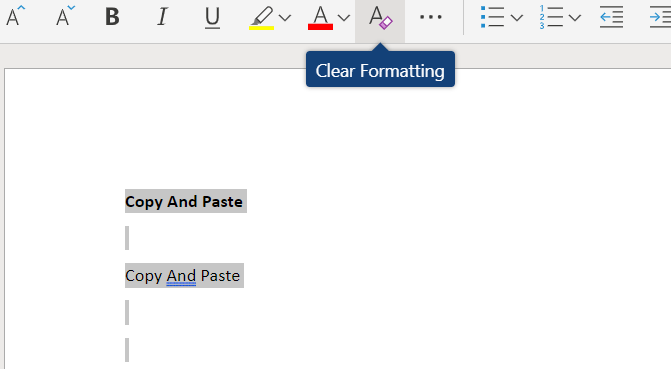
If you want to clear the formatting of a specific part of your document, simply highlight that area and click the Clear Formatting icon. The icon will look like a small eraser next to the letter A.
If you would like to clear the formatting on everything in your document, press Ctrl+A to highlight everything in the document and then click the clear formatting icon.
Highlight an Area Of Text Quickly

Instead of clicking and dragging to highlight an area of text in Microsoft Word, you can instead click once to place the text cursor at the start of the area you’d like to highlight, hold shift, then click at the end of the area you’d like to highlight.
Quickly Replace Multiple Mistakes

Have you just finished a lengthy document and just noticed you made a small mistake for a word, for example, writing land mark, instead of landmark? You can fix this within a few seconds by using find and replace.
First, press Ctrl+F and the find and replace tool will open. Next, click on Replace, then type in the word or phrase you want to replace. After, type the contents you’d like it be replaced by.
Quickly Copy And Create Lists


Let’s say you need to go through a document and pick out certain words/phrases and create a list from them.
Instead of going back and forth, writing each item onto the list each time you see a word, you can simply highlight each word and press CTRL + F3. You can do this multiple times until you have found each word/phrase.
Once you are finished, go to the area in the document you’d like the list to be created and press Ctrl + SHIFT + F3 to paste all of the highlighted areas you’ve just copied. This feature is known as Spike in Word.
As a final step, you can then highlight the contents and use the bullets or numbering tools in the toolbar to turn the words/phrases into a more ordered list.
Remove the Toolbar Ribbon

If you want distraction-free writing, you can remove the toolbar ribbon that sits at the top of your document by pressing Ctrl + F1. If you need it back at any point, you can press Ctrl + F1 again to bring it back into view.
0 Comments